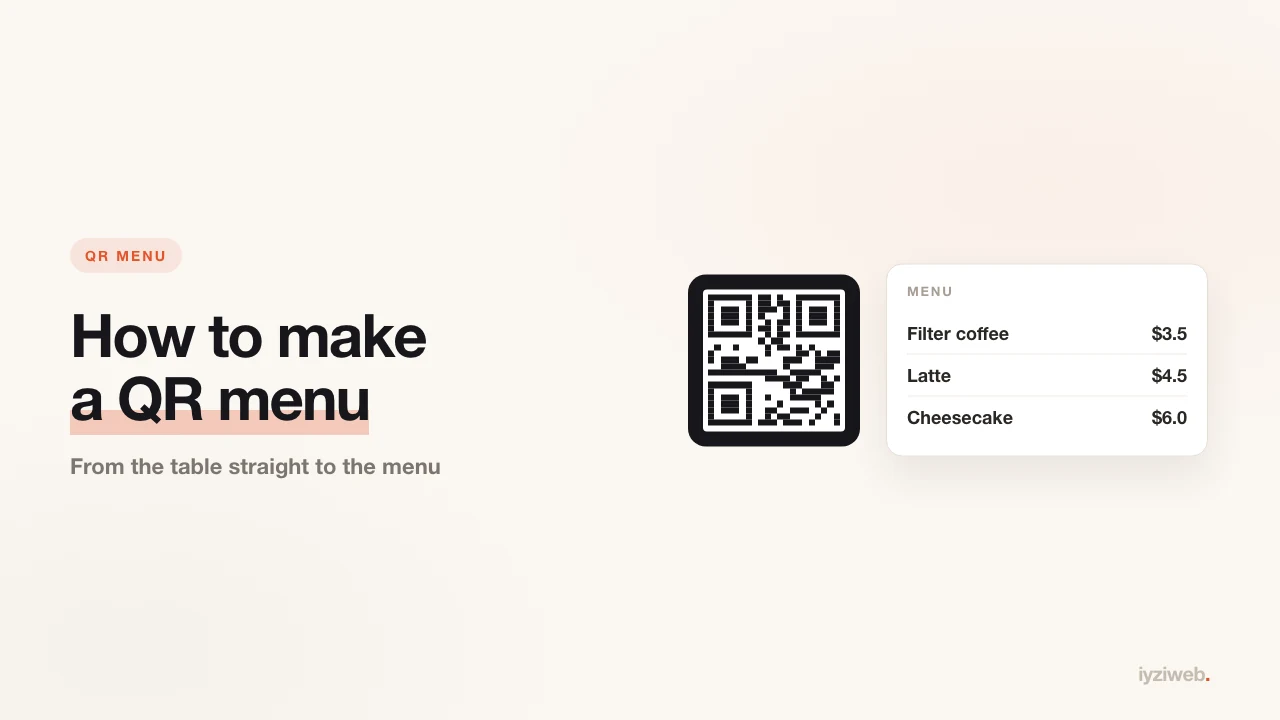
Most cafes and restaurants buy their QR menu as a monthly subscription. But the whole thing boils down to one fact: a QR code opens a web address. If your menu lives at that address, you have a QR menu. Everything else is packaging.
The distinction that matters
There are two approaches, and the difference between them is what bites you later:
| QR code of a PDF | QR code of a web page | |
|---|---|---|
| When prices change | New code, new print run | Code stays the same |
| On a phone | Needs pinch-zooming | Fits the screen |
| Can it show on Google | Practically no | Yes |
| Product photos | Fixed, heavy file | Loads fast |
| Cost | Free | Free |
The PDF route feels easier on day one but loses you money at the first price change: every code on every table has to be reprinted. With the web page approach the address never changes, only the content — and the sticker on the table lasts for years.
Step by step: a permanent QR menu
1. Put the menu on a web page
What the menu page needs:
- Categories (coffee, desserts, breakfast) that scroll with one thumb
- Item name, a short description, the price
- Allergen and vegetarian markers as small icons, if you use them
- Opening hours and phone — people looking at a menu often want these too
If you use photos, use them on selected items, not everything. A menu with a photo for every item loads slowly and makes people indecisive.
2. Keep the address short
A short address like yourcafe.iyziweb.app/menu means the QR code contains
fewer squares — which makes it bigger and easier to scan. Long addresses produce
dense codes that fail in dim light.
3. Generate the code
There is one thing to watch with free QR generators: sites selling "dynamic QR" require a subscription, and your code dies when you stop paying. Pick a static QR code — it contains your address directly, with no middleman and no dependency.
Download it as SVG rather than PNG; it scales without going fuzzy, and your printer will thank you.
4. Print it properly
- Print at least 1 inch square; 1.2 inches is ideal on a table sticker.
- Leave clear space around it — text touching the edge breaks scanning.
- Do not print a light code on a dark background; scanners struggle with inverted contrast.
- Add a line of text: "Point your camera here for the menu". Not everyone is used to it.
- Choose a matte laminate for tables; gloss reflects and blinds the camera.
5. Test before the print run
Print one on paper and try it on an old Android, an iPhone in low-power mode, and a table under evening lighting. If it opens first time on all three, go to print.
The overlooked benefit: the menu page enters Google
This is the most valuable and least known part of doing it with a web page. When your menu lives on a page, you can show up for searches like:
- "brunch prices near me"
- "[your town] cafe menu"
- "vegan breakfast near me"
A PDF does none of that. The same effort reaches both the customer at the table and someone who has never heard of you.
Common mistakes
- Linking the menu to an Instagram post. The app opens, asks for a login, the customer is lost.
- Using a cloud drive link. Some phones show a download screen instead.
- Putting the code on the payment terminal. Menu code on the table, payment somewhere else.
- Forgetting to update prices. A stale menu page means arguments at the till; this is where most complaints come from.
In short
A QR menu is not a product, it is a web address plus a code. If you have a menu page, the rest is five minutes of work and no monthly payment.
You can build a cafe site with a menu page from a single sentence — categories, prices and contact details come ready. If the menu photos are your next problem, see taking business photos with your phone.